Chrome extension
Bible Gateway Customizer
Your colors. Your reading space.
Customize Bible Gateway's own light and dark modes, save a separate color palette for each, and return to favorite passage searches with bookmarks.
Formerly Bible Gateway Dark Mode. Same extension, more choices. Keep your existing installation; your Pro license still works, with no need to buy again.
Two modes, your colors
Make it your own
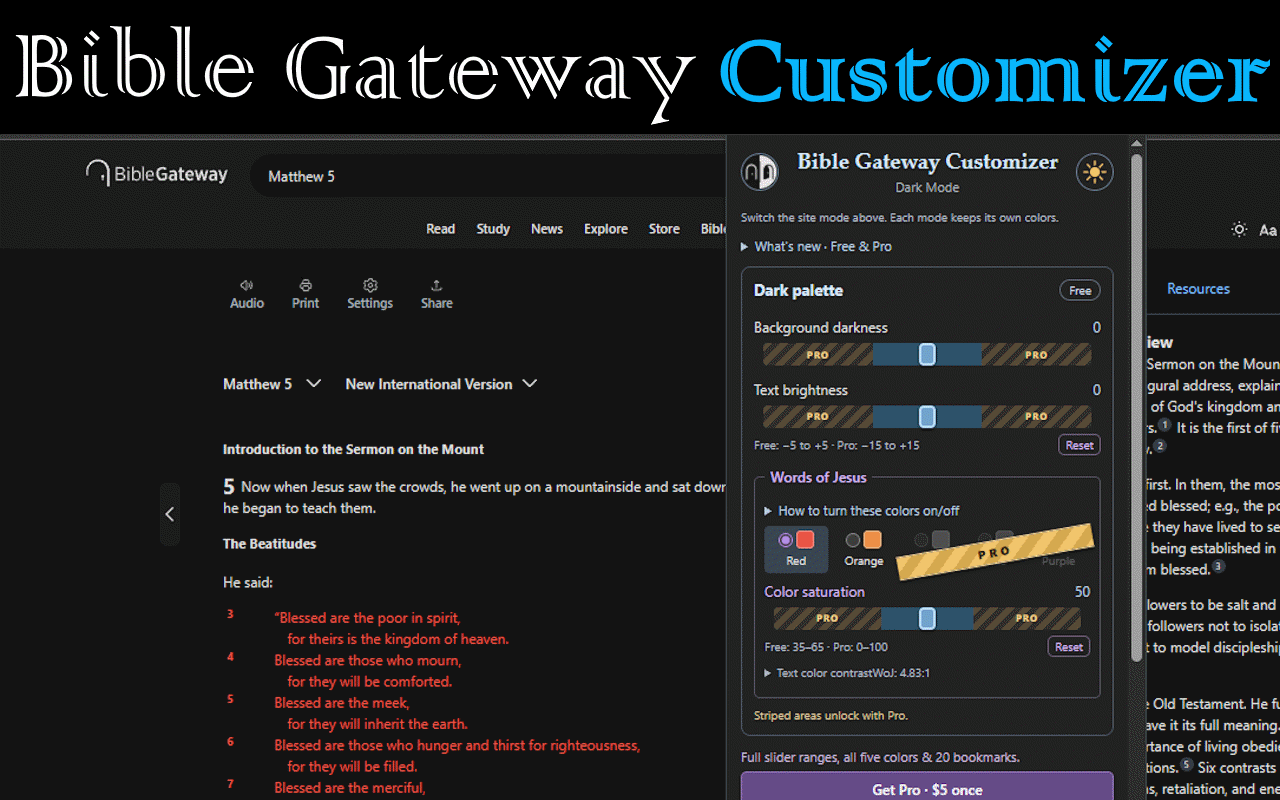
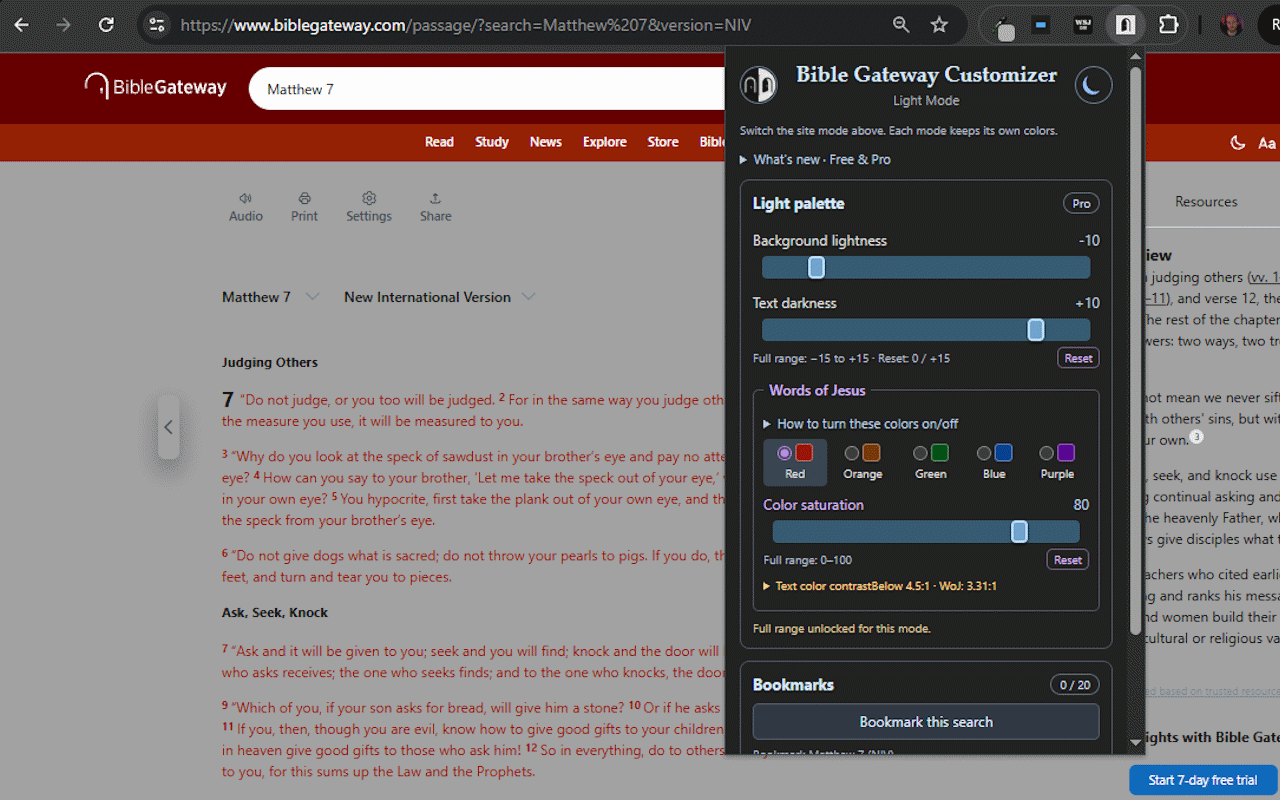
The earlier extension darkened Bible Gateway's light pages. Customizer now works with Bible Gateway's own light and dark modes, saving your background, text, and Words of Jesus colors separately for each.
- If Bible Gateway is set to light, you will see your light palette. Want dark? Use the popup's sun/moon button to switch the site's mode.
- Start for free with background, text, and saturation adjustments within the starter ranges.
- The door button only pauses or resumes your custom colors. A dimmed door means customization is paused.
Words of Jesus
Choose your reading colors
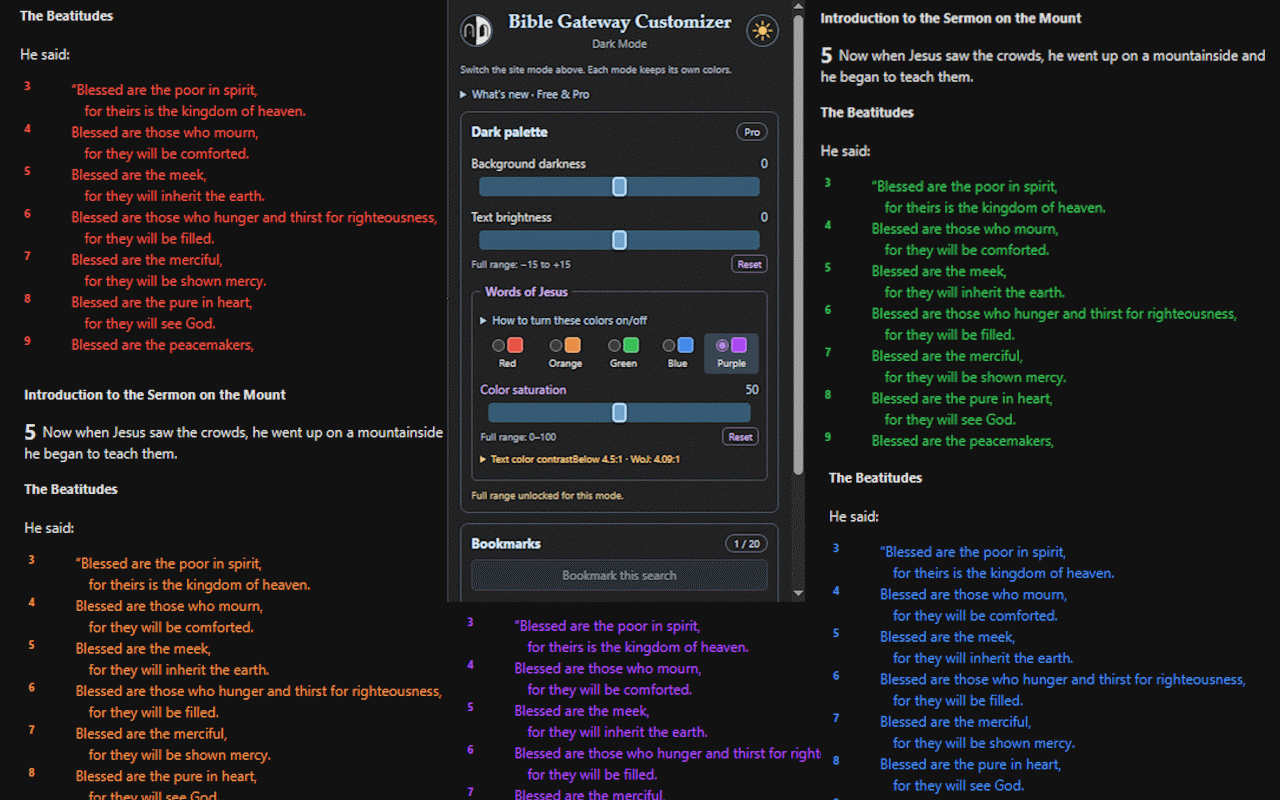
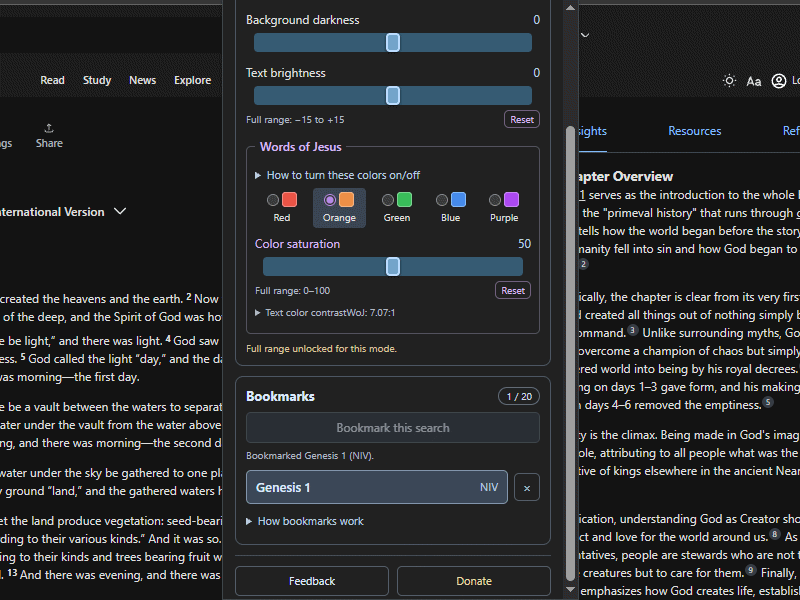
Choose red or orange for free, or add green, blue, and purple with Pro. Adjust saturation independently in each reading mode; light-mode colors use darker ink for light backgrounds.
On Bible Gateway, open Settings → Page Options → Red Letter. Check it to show Jesus' words in your chosen color, or uncheck it for ordinary text. Colors appear where the passage and translation mark Jesus' words.
The popup includes expandable Red Letter instructions and an estimated contrast reading. Some combinations have low contrast; use the guidance to find settings you can read comfortably.
Passage bookmarks
Return to the same passage search
Save a search such as John 3:20–26 with its selected translation. Each bookmark shows the passage reference and translation, opens in your current tab, and has a separate remove button.
Free keeps 3 bookmarks; Pro keeps 20. They stay in this browser profile, separately from Bible Gateway account bookmarks. There is no automatic reading-history log or device synchronization.
Free and Pro
Start free. Add more choices with Pro.
| Feature | Free | Pro |
|---|---|---|
| Separate light/dark palettes | Included | Included |
| Background, text, and saturation controls | Starter ranges | Full ranges |
| Words of Jesus colors | Red and orange | Red, orange, green, blue, and purple |
| Local passage bookmarks | 3 | 20 |
| Price | Free | $5 once |
See the exact slider ranges
| Control | Free | Pro |
|---|---|---|
| Dark background darkness | −5 to +5 | −15 to +15 |
| Dark text brightness | −5 to +5 | −15 to +15 |
| Light background lightness | −5 to +5 | −15 to +15 |
| Light text darkness | +5 to +15 | −15 to +15 |
| Color saturation | 35–65 | 0–100 |
Both tiers see the full slider rails. Striped areas and the Pro ribbon identify choices that require Pro.
A little help getting started
How do I activate an existing Pro purchase?
Open the extension, expand Have a license?, paste your complete BGDM-XXXX-XXXX code into License, and click Unlock Pro. If the palette badge already says Pro, you are unlocked. Free also has sliders, so visible controls alone do not identify Pro.
What is the difference between the sun/moon and door buttons?
The sun/moon changes Bible Gateway's native light/dark mode. The door pauses or resumes your custom styling; its image stays the same and dims when paused. The centered mode label tells you which palette you are editing.
Why aren't the Words of Jesus colors appearing?
Enable Settings → Page Options → Red Letter on Bible Gateway and choose a passage/translation that marks Jesus' words. The popup's Red Letter help explains this setting; it does not switch it for you.
Do my bookmarks or settings sync to another computer?
No. They are saved in this browser profile, independently of your Bible Gateway account. You can use your Pro license on your computers, but each keeps its own settings and bookmarks. Opening a bookmark uses the current tab; Chrome controls whether the popup stays open.
Which websites are supported?
Current Bible Gateway is the main experience described here. Styling support also includes Classic Bible Gateway, gospels.net, and gnosis.org, with different fallback styling. Native mode switching and passage features are not identical across all supported sites.
Independent extension; not affiliated with Bible Gateway or Bible Gateway Plus. Privacy policy · Contact support